


 Kenk.io Docs
Help for Kenk.io Docs
From the first start to your team. Kenk.io Docs is an app for iPhone and Mac, and your notes and files live on your device. Questions and contact are at the bottom.
Quick start
-
First start
Kenk.io Docs is available through TestFlight, Apple's app for test versions, for iPhone and Mac. You don't need an account for it – everything stays on your device.
On the iPhone your Kenk.io folder lives inside the app; in the Files app you find it under “On My iPhone”. On the Mac you choose where it goes at the first start – ideally in your home folder, not in iCloud Drive or another cloud folder (Kenk.io's own sync keeps devices in step). If you already use Kenk.io Plan on the Mac, Docs suggests the same folder.
-
Documents
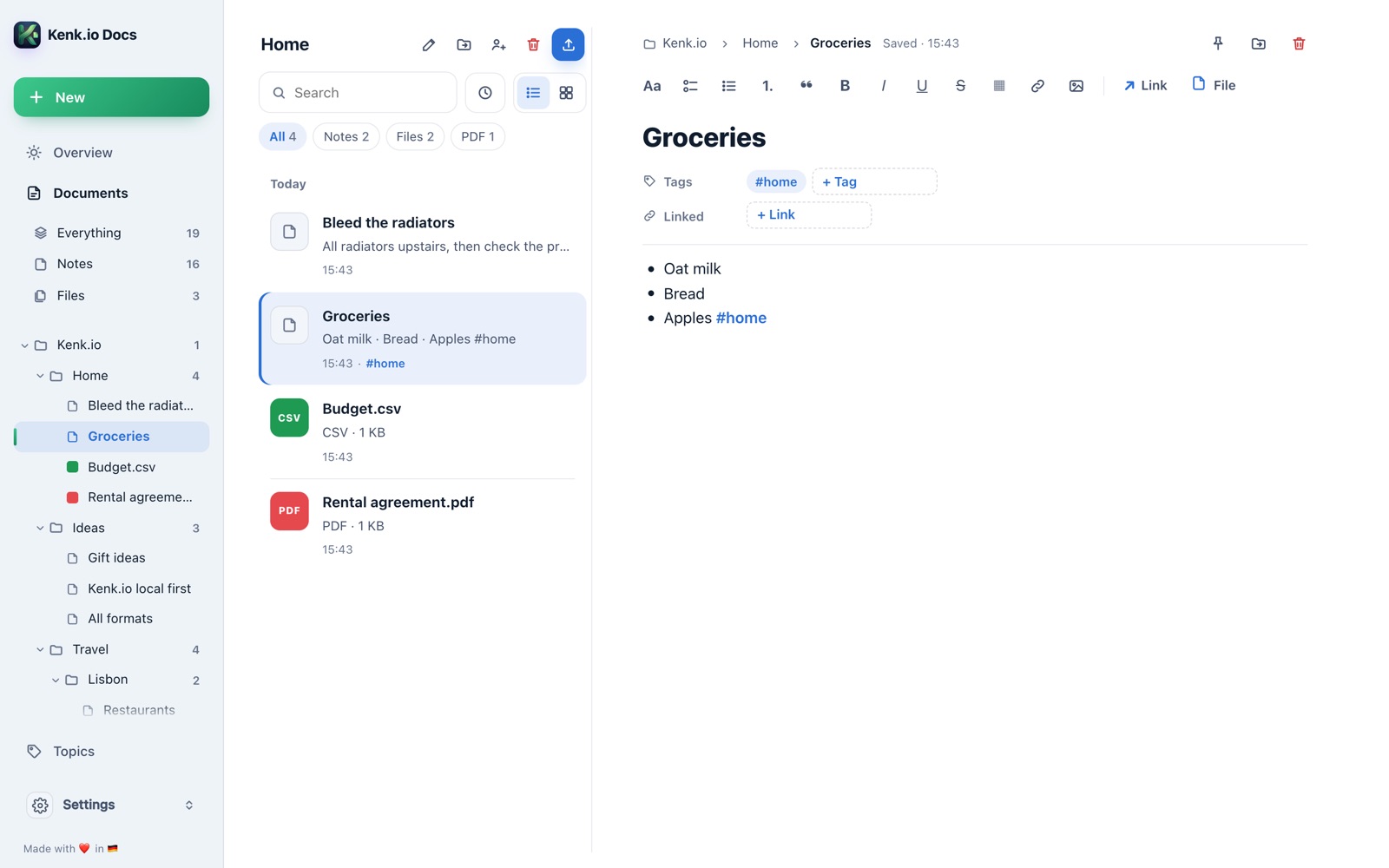
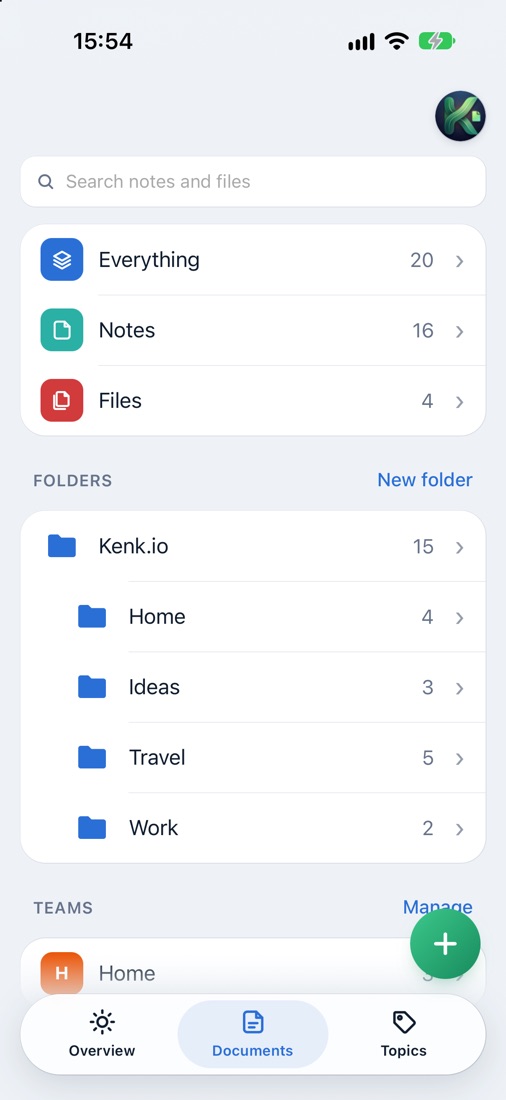
On the left your folders – as deep as you like – with notes and files, above them Everything, Notes and Files. In the middle the folder's list: search at the top, next to it sorting (last changed, name A–Z or Z–A, remembered per folder) and “List | Grid”, below that the filters by kind. On the right the open note or file.
On the Mac, right-clicking a note, file or folder opens a menu like in the Finder – open, pin, rename, move, show in Finder, delete. Deleted items stay in the trash for 30 days.
To pick several notes and files, ⌘-click them on the Mac (⇧-click for everything in between) or tap “Select” on the iPhone – then move them or put them in the trash together.

How-tos
-
Writing notes
The first line is the title, below it you just start writing – headings, lists, checkboxes, tables, quotes, code and images, without switching between editing and viewing. Everything is saved on its own. Images are stored as files in the “Attachments” folder and belong to the note – delete or move it, and they go with it.
With
#wordyou add tags; under “Linked” you connect a note to other notes and files. Every note is a Markdown file in your Kenk.io folder – readable for any program. -
Files and scanning
PDFs, photos, videos and Office files sit in the same folders as your notes. On the Mac you drag them into the window or onto a folder in the tree; on the iPhone you tap “+”: from Photos, from Files or “Scan document” – the scan becomes a PDF in the open folder.
You view a file in the app, PDFs and videos included; in the grid with a preview image.
-
Saving from other apps
In Photos, Safari, Mail or Files tap “Share”, then “Kenk Docs” – on the iPhone also “Save to Kenk.io Docs” in the list below. Choose a folder – tapping the folder opens the picker, the recently used ones are below – and “Save”. Photos and files arrive as files, a web page or text as a note with the link.
The next time it opens, Kenk.io Docs moves everything into the folder. If “Kenk Docs” isn't at the front of the row: “More” → “Edit” → green plus – then it stays there.
-
Search and topics
Search finds words in the titles and text of your notes, in file names and in the text of PDFs – even in scanned letters: your device recognises their text itself, nothing leaves it for that.
Under “Topics” you see everything that belongs to a tag in one place.
-
Sync and teams
Sync and teams are currently in testing and available by invitation only – for everyone they come when Kenk.io opens to all.
With sync your iPhone and Mac keep your folders in step – end-to-end encrypted, the server only ever sees encrypted data. You sign in with your Kenk.io ID, set up the first device and keep the recovery key safe; you confirm every further device with a number that is the same on both. If you lose a device: “Lost a device …” under Sync.
You share a folder with a team: “Share” on the folder, then pick a team or create one. You invite members under Settings → Teams with a link. Everyone in the team sees and changes the folder; your other folders stay private.
-
Your AI
Your Kenk.io folder is readable for your own AI – for example a program you give access to the folder on the Mac. Kenk.io puts
AI.mdthere (plus a short pointer inCLAUDE.md): what is where, what the AI may change and what Kenk.io does with it.When your AI creates or changes a note, it shows up in Kenk.io Docs within seconds. Kenk.io itself never calls an AI.

iPhone or Mac?
Both show the same folders and do the same things – kept current on both with sync. A few things only work in one place:
- Right-click menu and “Show in Finder”
- Keyboard shortcuts (Help → Keyboard shortcuts)
- Your AI on the Kenk.io folder
- Scanning documents
- “Save to Kenk.io Docs” in the list below Share
Frequently asked questions
- Where is my data?
- On your iPhone and Mac in the Kenk.io folder. With sync, also encrypted on the server in Frankfurt.
- Do I need an account?
- No. You only need an account for sync and teams.
- Can I take my notes with me?
- Yes. They are Markdown files in normal folders. Any program can open them.
- Is there Kenk.io Docs for Android or Windows?
- Coming at the launch in January 2027.
- Where should the Kenk.io folder go on the Mac?
- Best in your home folder, not in a cloud folder. Kenk.io's own sync keeps your devices in step.
- How long does deleted stuff stay in the trash?
- 30 days. Then it is gone.
- What do I do if I lose a device?
- Under Sync, “Lost a device …” changes the key. The device can't read anything new after that.
- What does Kenk.io Docs cost?
- The app is free. Kenk.io Sync costs €4.49 per month or €39.99 per year, the family plan for up to 5 people €6.99 or €59.99. One subscription covers all Kenk.io apps, available from January 2027.
- Who needs a subscription in a team?
- Only the person who creates the team. Invited members join without their own subscription, up to 5 members per team.
Contact
Write to info@kenk.io. In the app, it's under Settings.